Veggie Patch Planner Excel Free Template (2026)
14
Free download
Bushfire emergency plan Excel template for Australian households, farms and small businesses, with action tracking, contacts, costs and dashboard.
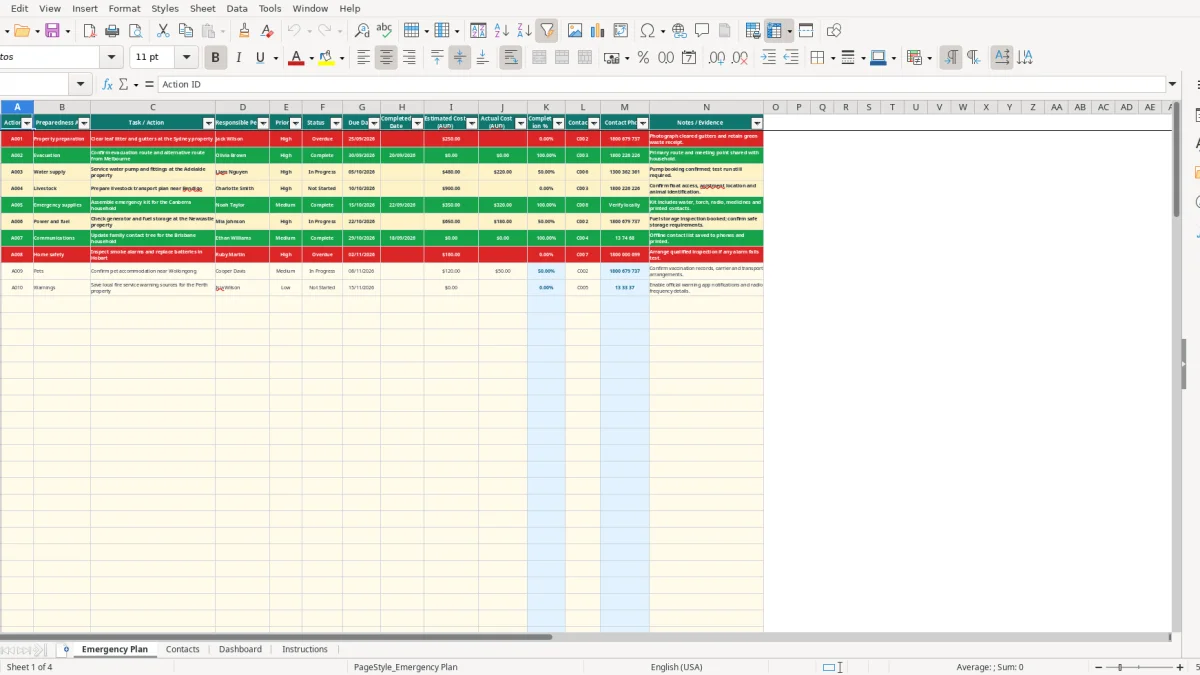
This bushfire emergency plan Excel template helps Australian households, farms and small businesses record preparedness actions, evacuation tasks, responsible people, due dates, costs and emergency contacts. It includes an Emergency Plan register, Contacts directory, Dashboard and Instructions sheet.
You can track up to 100 operational rows, link actions to contact phone numbers and monitor completion through calculated summaries. The workbook is for planning only: during an emergency, call Triple Zero (000), follow official warnings and leave early when directed.
A bushfire plan spreadsheet is useful wherever several people need to complete different jobs before a high-risk period. A rural household may use it for property preparation and animal arrangements, while an office manager, farm manager or volunteer committee can assign actions and keep evidence in one register.
A family on a semi-rural block might list clearing leaf litter, cleaning gutters, checking pumps, identifying two evacuation routes and arranging a destination for pets. One person can own the water-supply task, another can confirm the meeting point, and the Notes / Evidence column can hold a receipt or photograph reference.
The sample Emergency Plan sheet, shown in image 1, demonstrates the layout with actions such as clearing gutters at a Sydney property, confirming a route from Melbourne and servicing a water pump at an Adelaide property. It includes 14 columns, from Action ID through to Notes / Evidence, with prepared rows extending to row 101.
An office manager at a four-employee electrical business might record who shuts down equipment, who contacts staff, who checks the premises and who takes the printed contact list. A club treasurer could track fuel, transport, member welfare and an alternative meeting location, with a $1,200 preparedness budget split across several actions.
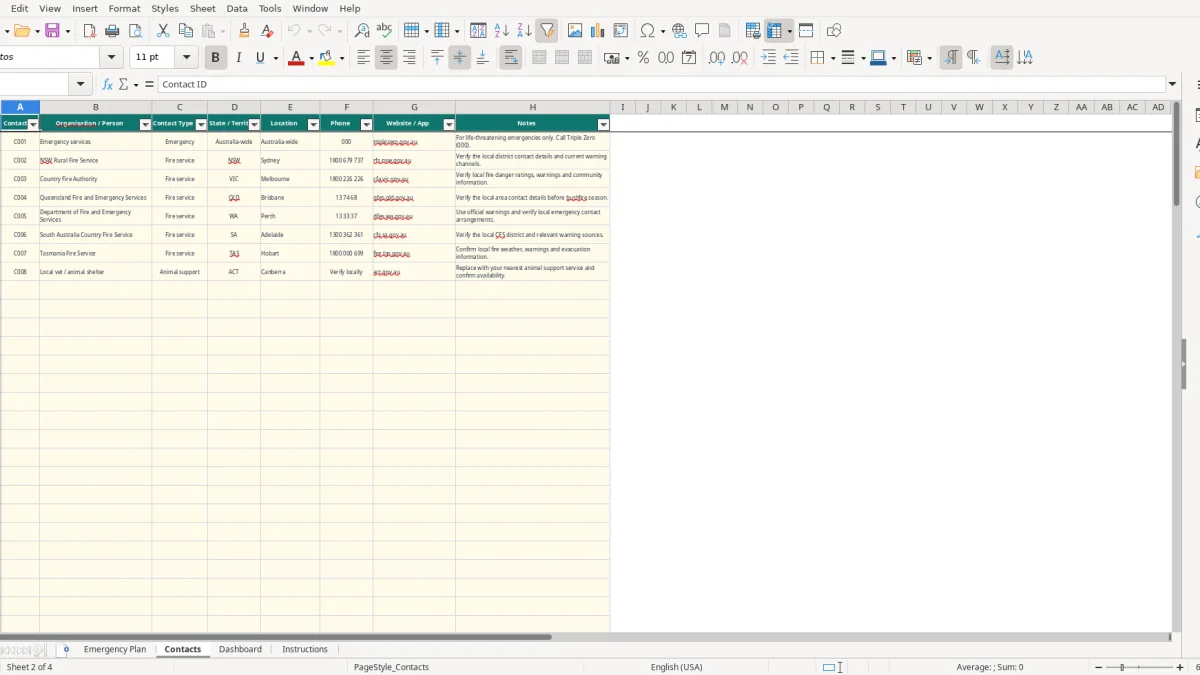
The Contacts sheet in image 2 suits a mixture of official and local contacts. It contains fields for state or territory, location, phone, website or app and notes, so a user can replace the examples with the correct council, fire service, neighbour, medical and animal-support details.
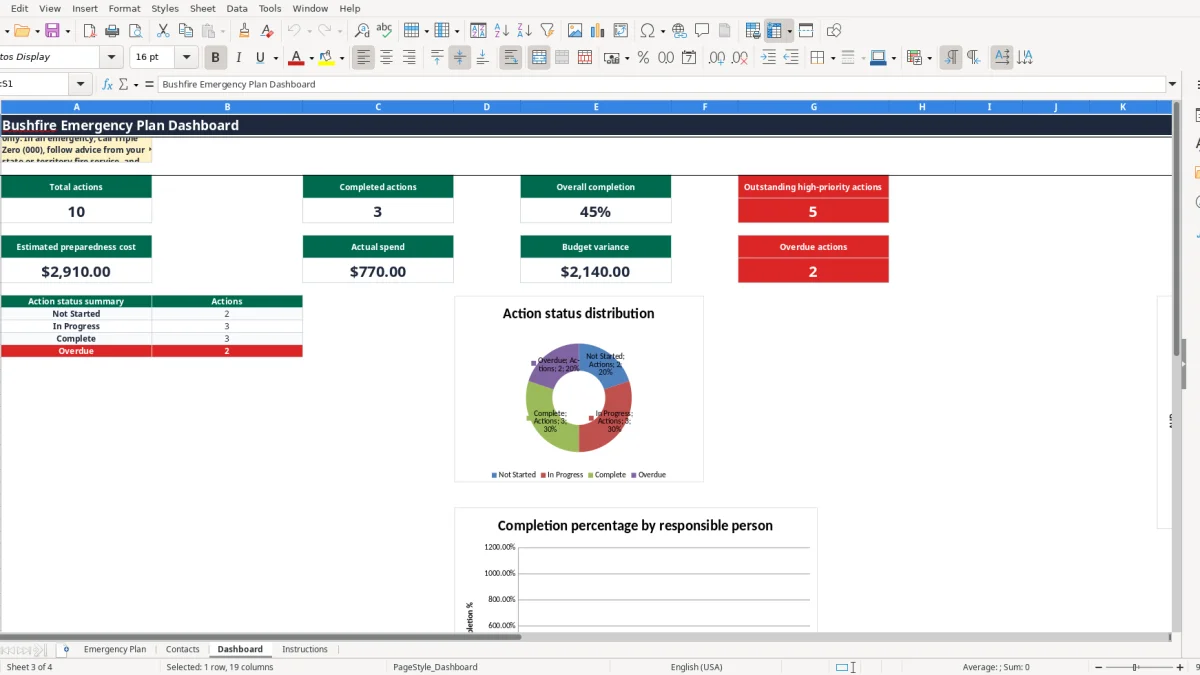
Do the main review before each bushfire season, then make a short check whenever a household member, employee, property, vehicle, animal arrangement or phone number changes. The Dashboard in image 3 turns those entries into a quick progress view rather than leaving the plan as a forgotten document.
This workbook supports preparation, but it does not issue warnings, assess fire danger or replace instructions from your state or territory fire service. The Dashboard and Instructions sheet clearly state that you should call Triple Zero (000) for a life-threatening emergency, follow official advice and evacuate early when directed.
Australian warning arrangements differ by state and territory, and fire danger ratings, road closures and evacuation directions can change quickly. Keep the relevant official website or app in the Contacts sheet, verify the local number before bushfire season and do not rely on a saved spreadsheet as a live source of emergency information.
The sample Contacts sheet, shown in image 2, includes Triple Zero, the NSW Rural Fire Service, Country Fire Authority, Queensland Fire and Emergency Services and the Department of Fire and Emergency Services. These are sample entries to check and customise, not a guarantee that every number or local service arrangement remains current.
Use the Emergency Plan to document evacuation triggers, a primary and alternative route, a safe meeting location, transport for pets or livestock, medications, accessibility needs and essential documents. A household with two cars and three animals might create separate actions for carriers, water, identification, feed, fuel and an animal-friendly destination.
For example, ten actions with estimated costs of $250, $480 and eight smaller items totalling $370 give an estimated preparedness cost of $1,100. Entering actual payments allows the Dashboard to show spend and the difference between estimated and actual cost, but it does not decide whether an action is safe or sufficient.
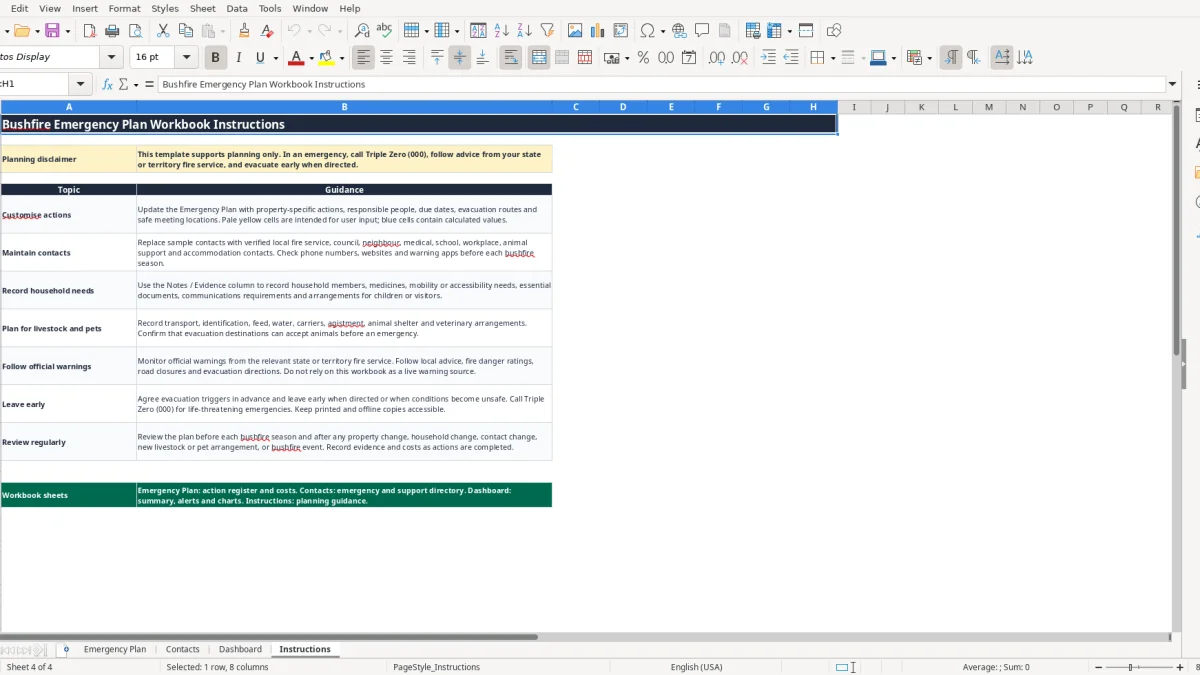
The Instructions sheet in image 4 says to review before each season and after property, household, contact, livestock, pet or bushfire changes. Print key details or save an offline copy because power, mobile coverage and internet access may not be available during an emergency.
The biggest failures I see in preparedness registers are not usually caused by complicated Excel formulas. They happen when a plan contains broad intentions rather than a named person, a date, a route or a tested arrangement. Clearing vegetation eventually is not an action; clearing the western boundary by 30 September with a named owner is.
A phone number copied from an old notice may connect to the wrong district or no longer provide the intended service. The Contacts sheet has 100 prepared rows, but that capacity does not make sample data current. Verify each number, website and local warning channel, and record the checking date in Notes.
A route can also fail because of a closed road, a locked gate, smoke or a destination that cannot accept animals. A household that has planned only one route may lose valuable time when that route is unavailable. Record a primary and alternative route as separate actions, then drive or walk them when conditions are safe.
Marking a job Complete before testing it creates a false result. In the sample data, the water-pump task has an estimated cost of $480, actual cost of $220 and remains In Progress because the test run is still required. That is the right use of status: payment or booking is not the same as a finished, checked action.
The completion formula assigns Complete a value of 1, In Progress 0.5 and other statuses 0. If four equal actions are marked Complete, In Progress, Not Started and Overdue, the average is 37.5%. That figure is useful for review, but it should not be treated as a safety rating.
Another costly gap is failing to document medicines, mobility needs, children, pets, livestock, fuel, carriers or essential documents. Add those details to Notes / Evidence and assign an owner. A $300 pump repair is wasted if nobody records how to start it, where the fittings are stored or who checks it before the season.
A plan works when it is attached to a routine already happening, not when it is opened once and forgotten. Set a seasonal review date, then use a short monthly check during the high-risk period. The owner should update status, costs, dates and evidence immediately after each task rather than relying on memory.
The Dashboard in image 3 is useful at this point. It calculates total actions, completed actions, average completion, outstanding high-priority actions, estimated cost, actual spend, budget variance and overdue actions. Its charts provide a quick visual check, while the detailed register remains the place to make corrections.
Use the built-in lists rather than typing alternative status names such as Done or Started. The workbook validates priority in column E, status in column F, dates in columns G and H, and Contact ID in column L. Contact phone numbers in column M are calculated from the Contacts sheet with VLOOKUP, so edit the directory rather than overwriting the formula.
Keep a printed copy of essential contacts and evacuation information, particularly for a rural property where power or internet may fail. Review the workbook after a move, new animal, new household member, changed phone number or bushfire event.
For one household or a small team with fewer than 100 actions, this register is practical. Move to a shared operational system when several people need simultaneous updates, audit history, alerts, permissions or live mobile access; Excel does not provide those functions in this workbook.