School Canteen Price List Excel Free Template (2026)
10
Free download
Manage caravan park bookings, site types, GST, deposits and balances with an Excel spreadsheet for Australian park operators.
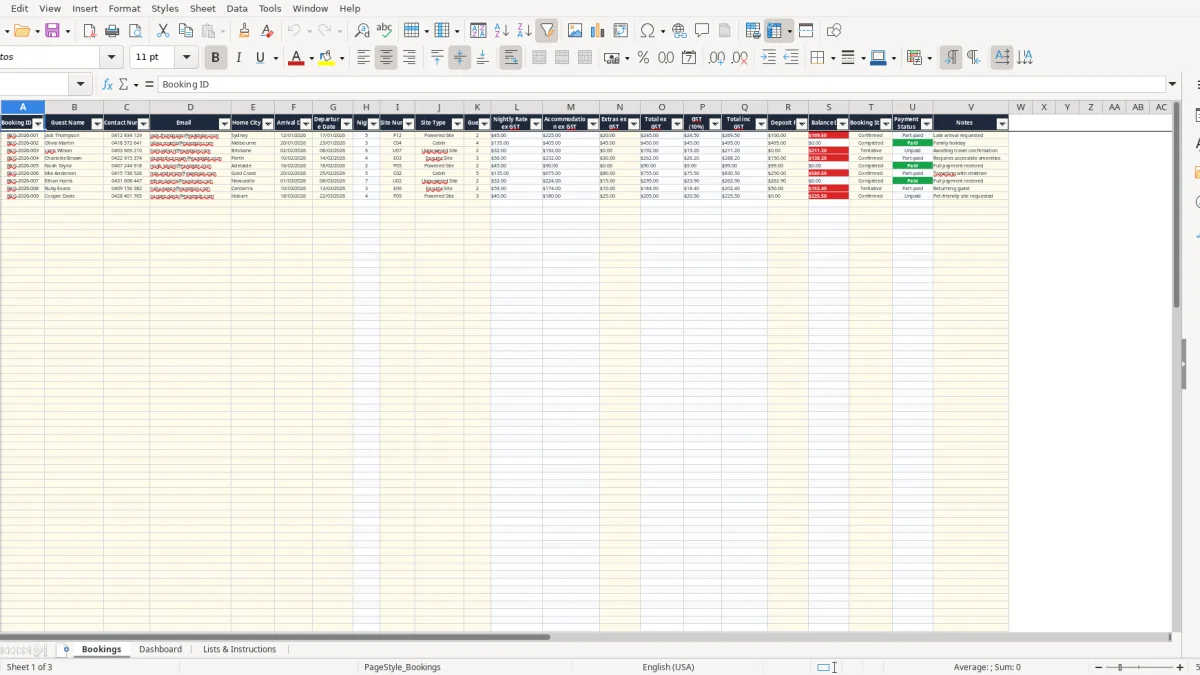
This caravan park booking Excel spreadsheet records guest details, arrival and departure dates, site numbers, site types, nightly rates, extras, deposits and booking status. It calculates nights, GST, totals and balances, then summarises booking activity and site-type revenue on a dashboard.
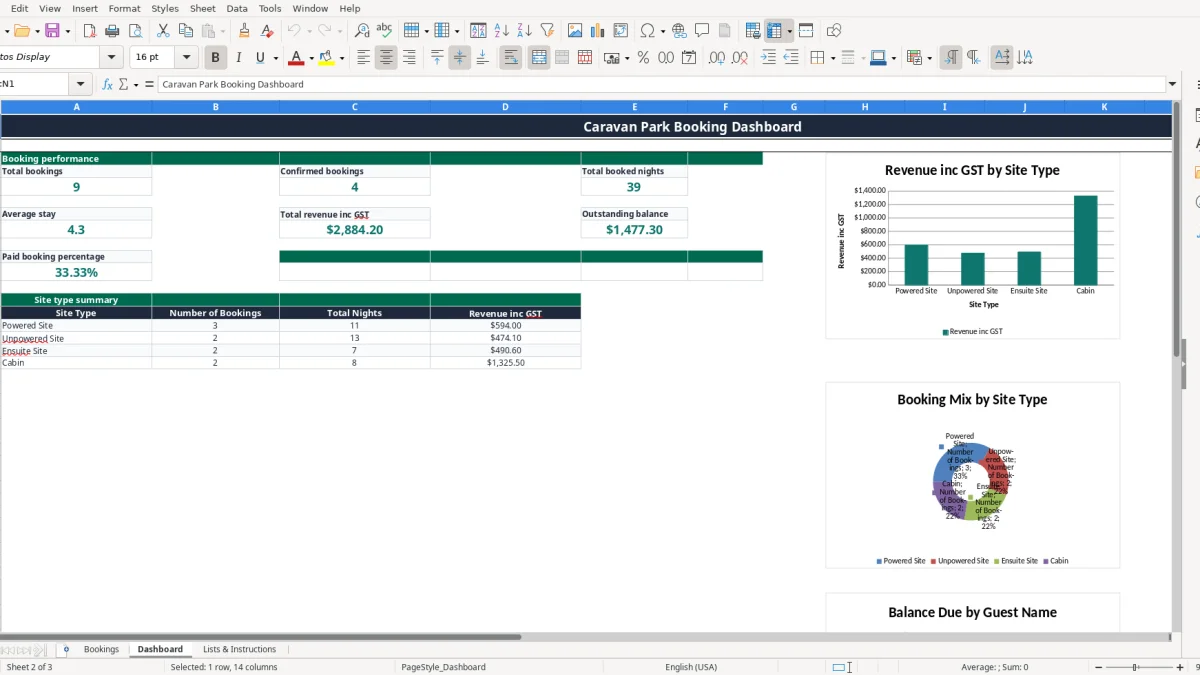
The Bookings sheet provides 100 prepared operational rows, with pale-yellow input cells and calculated columns. Image 1 shows the full booking register from Booking ID through to Notes, while image 2 shows the Dashboard with booking totals, revenue, outstanding balances, site-type summaries and three charts.
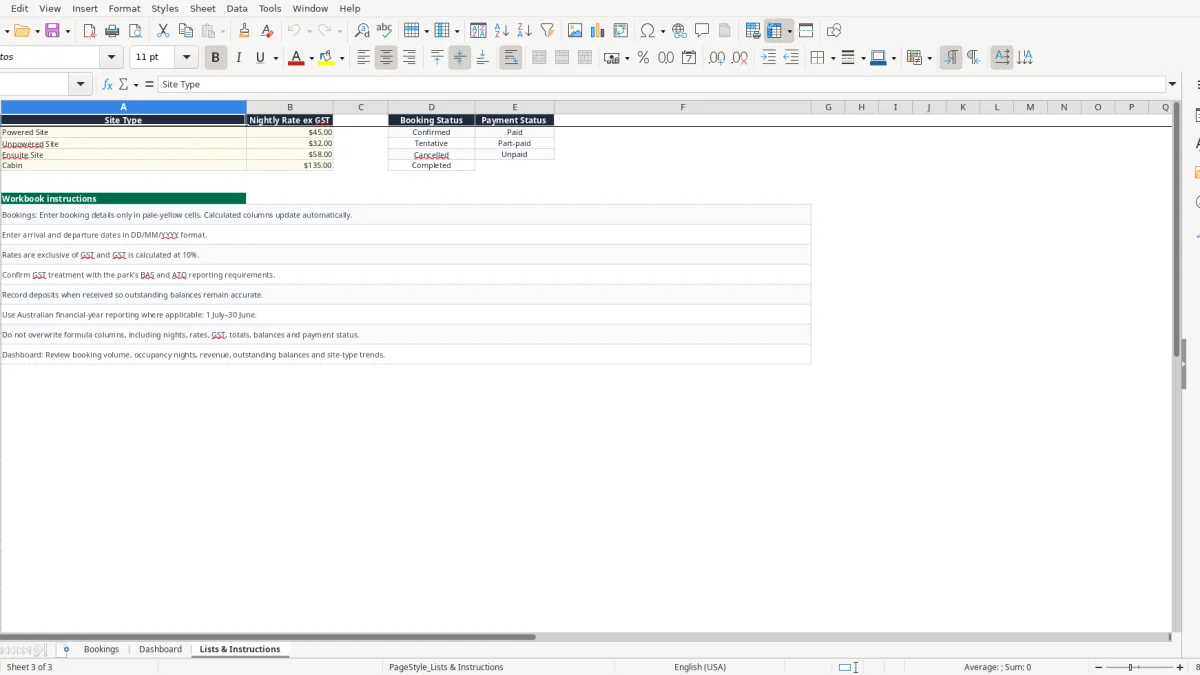
The Lists & Instructions sheet, shown in image 3, contains four site types, sample rates, booking and payment statuses, plus instructions for entering dates, deposits and Australian financial-year information.
A small caravan park often has bookings coming from phone calls, email, online enquiries and repeat guests at the same time. This spreadsheet gives the office manager or park owner one register for the reservation details, rather than relying on a diary for dates and a separate notebook for deposits.
A regional park may use it heavily before school holidays, long weekends and the summer rush, then keep it updated daily during quieter periods. A manager handling 300 online and phone bookings a month can filter the Bookings sheet by arrival date, site type or status while still keeping guest contact details beside the reservation.
The prepared rows run from row 2 to row 101. The workbook includes sample bookings, but those examples are not extra capacity: you should replace or clear them before using the file for live records. Image 1 shows the input and calculated columns across the booking register.
Suppose a guest books a Powered Site from 12/01/2026 to 17/01/2026. The sheet calculates 5 nights at the sample $45.00 ex GST rate, giving $225.00 accommodation. Add $20.00 of extras and the ex-GST total is $245.00; GST is $24.50, the total including GST is $269.50, and a $100.00 deposit leaves $169.50 due.
A volunteer treasurer at a camping club could also use the same structure for a short event, while a park bookkeeper can copy the completed totals into the accounting system. It is best used as an operational register and checking tool, not as a replacement for a proper reservation platform when availability must be controlled in real time.
For a GST-registered Australian business, the workbook applies the standard GST rate of 10% to the total ex GST. GST registration is generally required once annual turnover reaches $75,000, or $150,000 for a not-for-profit organisation. The workbook's Lists & Instructions sheet states that rates are exclusive of GST and that the GST treatment must be checked against the park's reporting arrangements.
The Bookings sheet adds Accommodation ex GST and Extras ex GST in Total ex GST, calculates GST (10%), then adds it to Total inc GST. For example, $500.00 accommodation plus $50.00 extras produces $550.00 ex GST, $55.00 GST and $605.00 including GST. A $200.00 deposit then leaves a calculated balance of $405.00.
Do not assume every charge has the same treatment without checking the underlying supply. A standard powered or unpowered site supplied by a GST-registered park is commonly taxable, while particular goods or services may be GST-free under Australian GST rules. The spreadsheet applies 10% to the booking total, so unusual packages or non-taxable components need to be reviewed before the figure is used in a BAS.
Most small businesses lodge BAS quarterly; businesses with GST turnover above $20 million generally lodge monthly. The ATO expects records that support sales, GST collected, deposits and adjustments, and business records generally need to be retained for 5 years.
Use the workbook alongside tax invoices, bank statements and your accounting records. A tax invoice should include the supplier's identity and ABN, the words Tax Invoice, the invoice date, a description and GST shown separately where required, including invoices over $82.50. This file calculates booking figures but does not generate tax invoices or lodge BAS.
After checking the booking totals and supporting records, a BAS statement workbook can help organise GST sales and purchases into a quarterly summary before lodging.
The most expensive booking mistakes are usually small entry errors that multiply across a busy season. A departure date entered one day early turns a 7-night stay into 6 nights, while an incorrect site type can apply a $32.00 unpowered rate instead of the sample $135.00 cabin rate. The difference on a 4-night booking is $412.00 before GST.
This workbook calculates nights from departure date minus arrival date, but it does not check whether two guests have been allocated the same physical site. If P12 is entered for two overlapping confirmed bookings, the register will still calculate both invoices. Compare the Site Number and date columns before confirming a reservation, particularly when a staff member takes a phone booking during check-in.
A common workaround is to mark one booking Tentative until the site map has been checked. That is safer than treating every row as confirmed, because the Dashboard's confirmed booking count is driven by the Booking Status values in column T, not by whether a guest has paid.
Leaving a $300.00 deposit out of Deposit Paid makes the reported outstanding balance $300.00 too high. Entering an extra as $110.00 including GST when the column expects ex GST makes the GST calculation wrong as well: the sheet will calculate $11.00 GST on top, producing $121.00 instead of treating $110.00 as the final tax-inclusive amount.
Do not type over formula columns such as Nights, Nightly Rate ex GST, GST, Balance Due or Payment Status. A damaged formula can affect 100 prepared rows and make the Dashboard look credible while reporting incomplete revenue. Check a sample calculation after changing rates, and reconcile totals to deposits received rather than relying only on the status label.
A spreadsheet only helps when someone updates it at a predictable point in the booking cycle. For a small park, enter a new reservation immediately after taking the phone call, then spend 10 minutes at the end of each day checking the next 14 days of arrivals against the site map and deposit records.
Image 3 contains the workbook instructions, including the warning not to overwrite formula columns. The five validations already built into Bookings help keep site type, booking status, dates, guest numbers and amount fields consistent. Keep the existing lists intact unless you also update the rate or status references used by the formulas.
This file has 100 booking rows and no live availability engine, online booking connection, automated email, invoice generator or chart based on a selectable date range. If the park receives 300 bookings a month, has several staff entering reservations, or needs live inventory across multiple channels, move the operational process to a reservation system or accounting platform such as Xero or MYOB and retain Excel for analysis.
Until then, link the spreadsheet to your weekly occupancy check and month-end reconciliation. At the end of the Australian financial year, 30 June, save a dated copy and compare the Dashboard revenue and outstanding balance with the accounting records.