Property Depreciation Excel Template – Free (2026)
79
Free download
NDIS provider invoice register with participant, support item, GST, due date and rate-check columns for Australian providers.
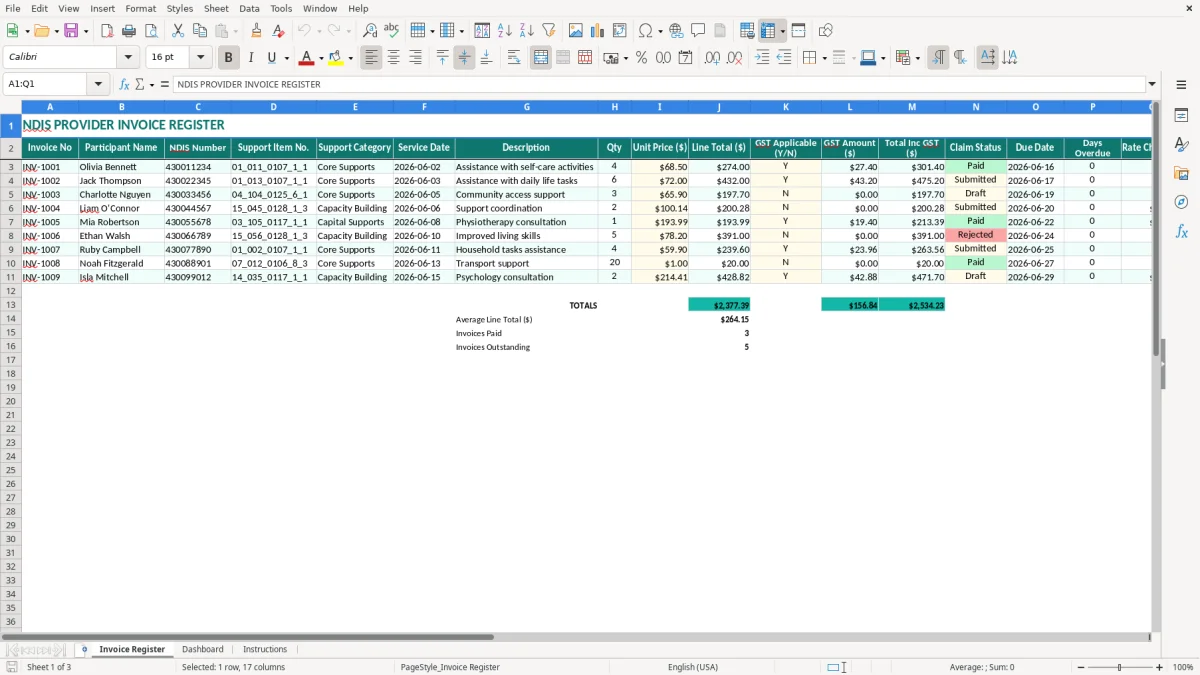
This NDIS provider invoice Excel template records participant details, NDIS numbers, support item numbers, service dates, quantities, rates, GST, claim status and due dates. It includes an Invoice Register, Dashboard and Instructions sheet so Australian providers can check invoices and follow up overdue amounts.
Use it when services have been delivered and you need a consistent invoice register rather than a collection of separate files. The register includes a support item lookup area with item descriptions and standard rates, while calculated columns help you compare line totals, GST and total amounts.
Small NDIS providers use an invoice register at the point where service notes become billable work. That might be a sole trader support worker billing after each shift, an office manager processing a fortnightly batch, or a bookkeeper checking invoices before they are sent to a plan manager or submitted through the provider's normal claiming process.
Take a support worker who provides personal-care assistance to 12 participants. If four participants each receive three sessions in a week, the register gives the provider 12 service lines to check rather than four vague weekly totals. At the sample lookup rate of $68.50, two 2-hour sessions produce $274.00 before any GST decision: 2 sessions × 2 hours × $68.50.
The Invoice Register sheet is designed around that check. Image 1 shows the title and the main columns: Invoice No, Participant Name, NDIS Number, Support Item No., Support Category, Service Date, Description, Qty and Unit Price ($). The later columns record Line Total ($), GST Applicable (Y/N), GST Amount ($), Total Inc GST ($), Claim Status, Due Date, Days Overdue and Rate Check ($).
A sole trader can enter an invoice after each visit, while a small Pty Ltd can have an administrator enter 300 service lines at month-end for several support workers. The participant and service fields make it possible to trace a total back to a date and support item when a plan manager queries an amount.
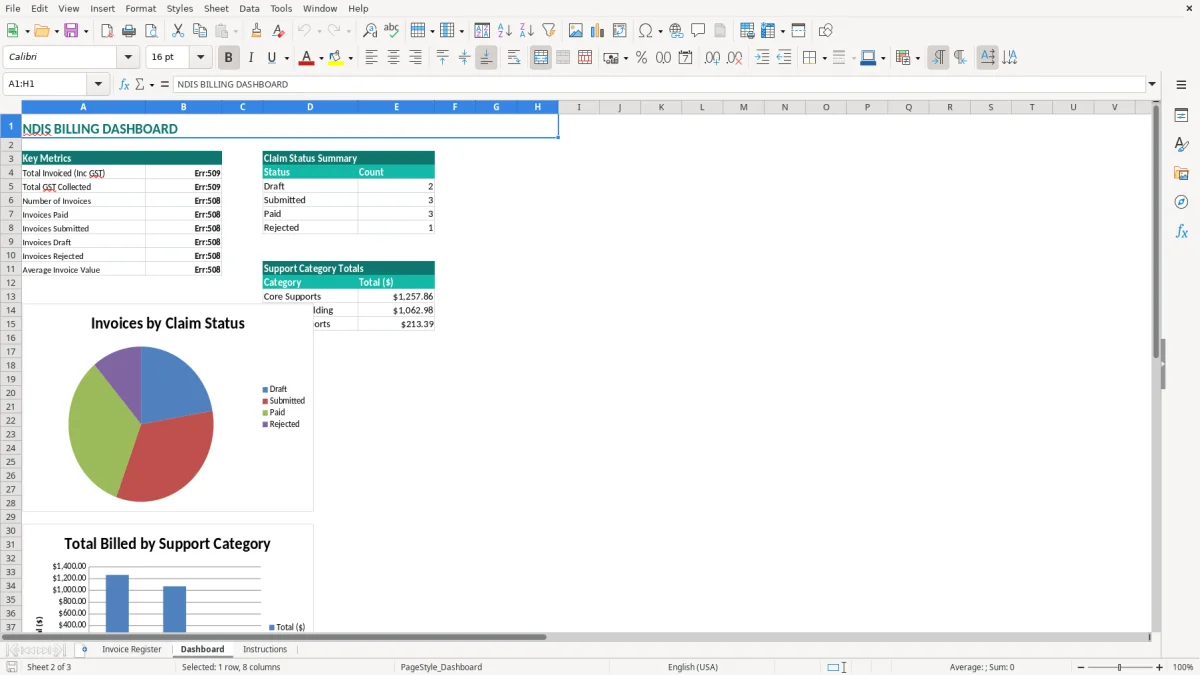
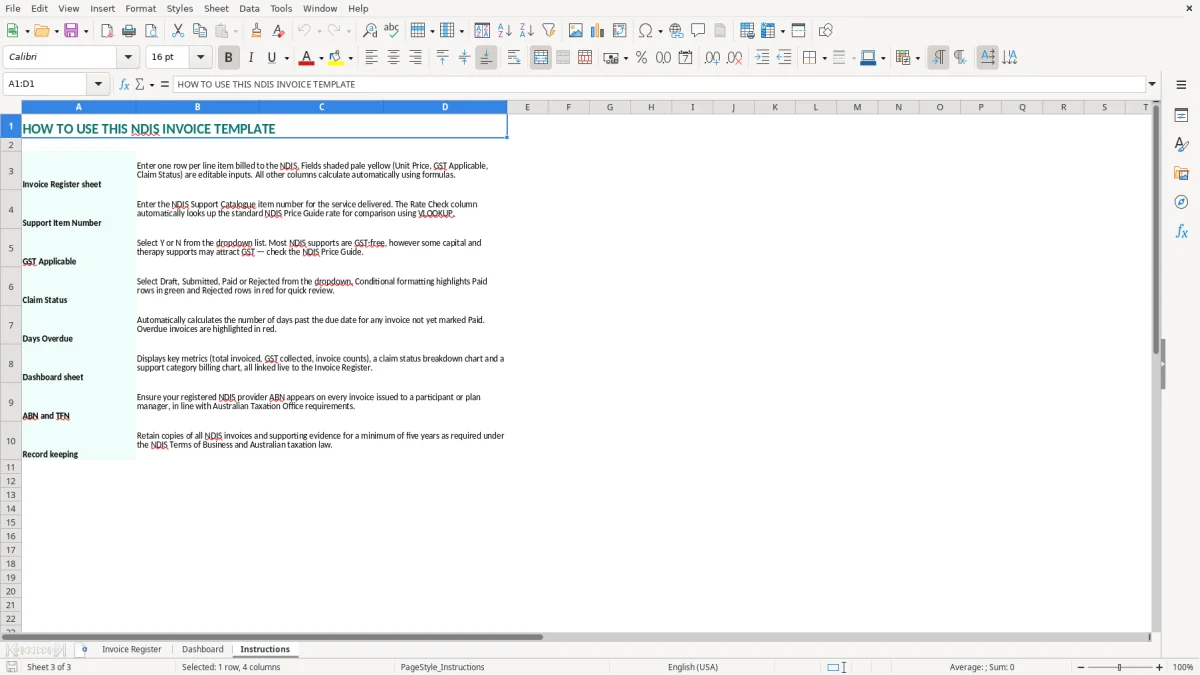
The lookup block to the right contains Support Item Number, Item Description and Standard Rate ($). Image 2 shows the separate Dashboard sheet, and image 3 shows the Instructions sheet. Use the dashboard for the summary provided by the workbook, but keep the register as the detailed source of truth.
Unlike a quarterly BAS spreadsheet, this file is most useful weekly or each pay run. At the end of the Australian financial year, the bookkeeper can use the register to tie issued invoices to the profit and loss, investigate unpaid amounts and retain the service evidence supporting the income entry.
The GST treatment of an NDIS support is not decided by the provider's general GST registration status alone. Under section 38-38 of the A New Tax System (Goods and Services Tax) Act 1999, an NDIS supply can be GST-free where the participant has an NDIS plan, the support is reasonable and necessary, the supply is made under the plan, and the provider has the required written evidence or statement.
That means a $1,000 support invoice may remain $1,000 with no GST line, while a taxable supply of $1,000 would generally be $1,100 including GST at 10%. The template's GST Applicable (Y/N), GST Amount ($) and Total Inc GST ($) columns make the decision visible; they do not decide whether the legal conditions are met.
For a taxable supply, the provider's tax invoice should identify the supplier and ABN, use the words Tax Invoice, show the date, describe the service and show GST separately where required. For invoices of $82.50 or more including GST, the ATO expects a tax invoice with the relevant details and GST amount shown.
For a GST-free NDIS support, write a clear description and retain the participant plan evidence or statement that supports the GST-free treatment. Do not turn a $68.50 rate into $75.35 by adding 10% unless the supply is taxable: $68.50 × 1.10 equals $75.35, but that calculation is not appropriate for a GST-free support.
GST registration is generally required when business turnover reaches $75,000 a year, or $150,000 for a not-for-profit. Most small providers lodge a BAS quarterly; monthly BAS reporting applies to businesses with turnover of $20 million or more. A registered provider also needs to reconcile invoice totals to the business bank account and accounting records.
Keep invoices, service records, plan evidence and rate checks for five years under the ATO's record-keeping requirement. The lookup rates in this workbook are reference values supplied with the template, not a substitute for checking the current NDIS Pricing Arrangements and Price Limits before billing.
The most expensive mistakes I see are not usually difficult Excel errors. They are mismatches between the service delivered, the support item billed and the evidence held for that participant. A provider can spend an hour chasing a rejected $193.99 line, then discover the description, date or item number does not support the claim.
A support worker may select a similar-looking item number and enter $72.00 when the agreed item is the sample $68.50 rate. On 20 two-hour sessions, that difference is $140.00 before considering whether the higher amount breaches the applicable price limit. The Support Item No. and Rate Check ($) columns give the bookkeeper a deliberate place to investigate the difference instead of approving it silently.
Rates can also change, and the lookup list in the workbook is not a live connection to the NDIS portal. Leaving old rates in place can multiply a small error across 300 monthly orders or service lines. Update the reference block only after checking the current item description, unit and price limit.
Adding GST to every invoice is another common problem. A $500 support that meets the section 38-38 conditions should not automatically become $550; the extra $50 can create a participant budget issue and require a corrected invoice. Conversely, treating a taxable supply as GST-free can leave a registered provider short by $50 on a $500 charge and distort the next BAS.
Duplicate invoice numbers, a service date outside the participant's plan period and an incorrect NDIS number can all hold up payment. A duplicate $400 invoice entered twice creates a $400 reconciliation difference even if the spreadsheet total looks tidy.
Do a three-way check before sending: service note to date and quantity, support item to permitted rate, and invoice to participant and plan details. Keep the original service evidence with the register export. The spreadsheet helps locate the problem; it cannot replace signed records, plan information or the provider's claiming controls.
The easiest way to keep this NDIS provider invoice template alive is to attach it to an event that already happens. For a sole trader, that can be Friday afternoon after the last visit. For a small provider, it can be the administrator's fortnightly payroll cut-off, when service hours are already being checked.
Set aside 20 minutes and process the week's services in the same order every time: enter the participant and service details, check the support item, review the rate, then confirm GST and due date. A 10-line batch at 20 minutes is manageable; leaving 120 lines until month-end makes duplicate and missing-date errors much harder to find.
Before issuing invoices, sort or filter Rate Check ($) differences and investigate every non-zero variance. Compare a sample total manually: 3 hours at $72.00 equals $216.00 before GST, and $237.60 if the supply is taxable at 10%.
Do not overwrite formula cells just to make a total agree. If a rate is wrong, correct the input or the reference lookup and record why. The Dashboard sheet, shown in image 2, is useful for the summary view supplied with the workbook; image 3's Instructions sheet should be your first reference when handing the file to another administrator.
Excel remains practical for one provider and a modest participant list. Move to software such as Xero, MYOB or an NDIS-focused practice system when several staff edit the file at once, you are handling hundreds of lines every week, or you need automated approvals, audit trails and direct workflow controls. Export the register first so your invoice history is retained.
That same export step matters when moving a self-managed super fund register into software, so the invoice history stays intact before the workbook is retired.