Rego Renewal Excel Template – Free (2026)
0
Free download
Track NDIS plan categories, providers, allocated funds, spending, remaining budgets and utilisation across a 2026–27 plan period.
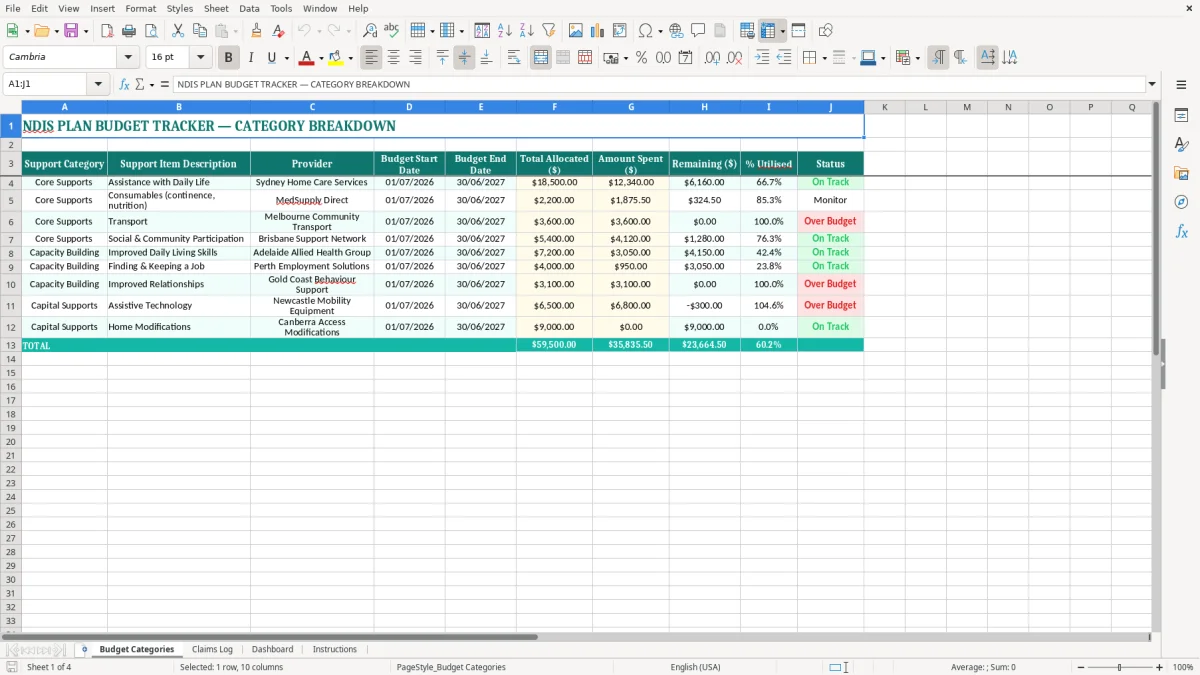
This NDIS plan budget tracker Excel spreadsheet records each support category, item, provider, plan dates, allocated funding and spending. It calculates the remaining budget and percentage utilised, with a dashboard for quickly checking how a participant's 2026–27 plan is tracking.
Use it to keep claims and provider invoices in one practical workbook rather than relying on bank statements or a pile of emails. The four sheets are Budget Categories, Claims Log, Dashboard and Instructions, with currency, percentage and DD/MM/YYYY formatting already set up.
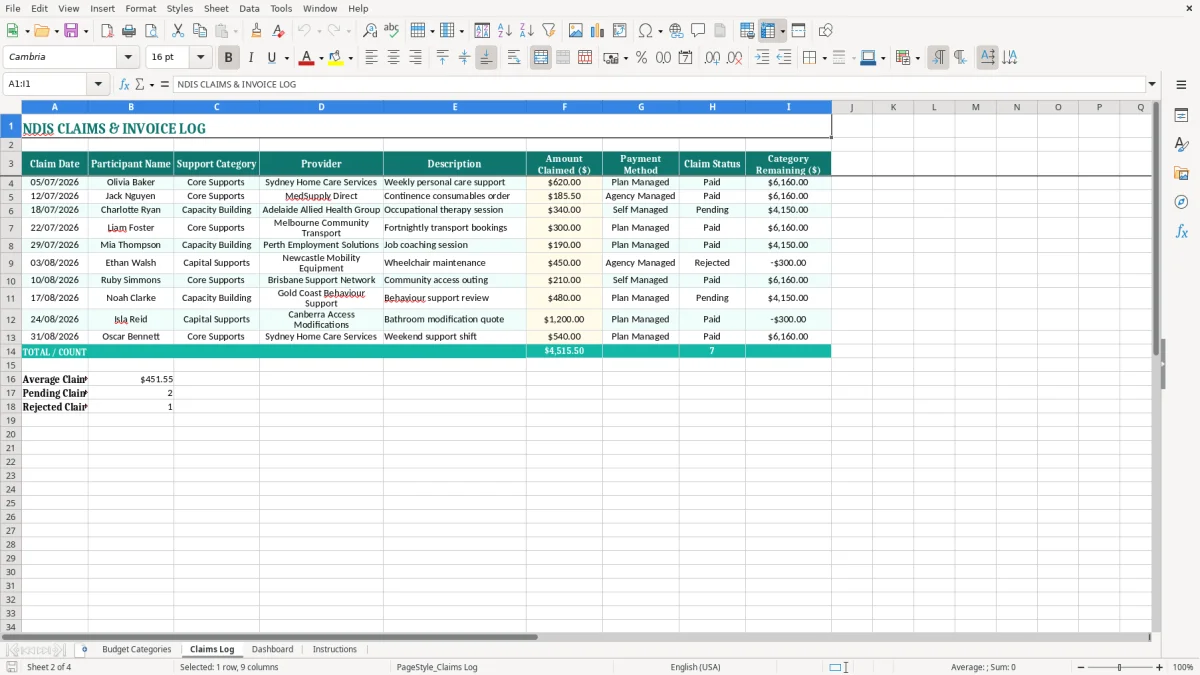
An NDIS participant, nominee, support coordinator or plan manager usually needs this type of spreadsheet when invoices start arriving faster than the plan balance is being checked. A participant with a 01/07/2026 to 30/06/2027 plan can use it after each weekly support session, while a coordinator might update it before a monthly review with the family.
Image 1 shows the Budget Categories sheet. Its table runs from Support Category and Support Item Description through Provider, Budget Start Date, Budget End Date, Total Allocated ($), Amount Spent ($), Remaining ($), % Utilised and Status. The sample entries show practical categories such as Core Supports, Assistance with Daily Life, Transport and Social & Community Participation, as well as Capacity Building.
Take the sample Assistance with Daily Life row: $18,500.00 allocated and $12,340.00 spent leaves $6,160.00, or about 66.7% used. That is more useful than seeing one large plan total because the participant can ask whether the remaining amount will cover the next 11 months of regular support.
For a participant using transport, the row can show that $3,600.00 has been allocated and $3,600.00 spent. Even if other categories still have money, that fully used line deserves attention before another transport invoice is approved.
Image 2 shows the Claims Log, where individual transactions can be entered against a provider and support category. A sole operator providing community access, a parent checking therapy invoices and a plan manager reconciling provider claims can use the log as the transaction-level record behind the category summary.
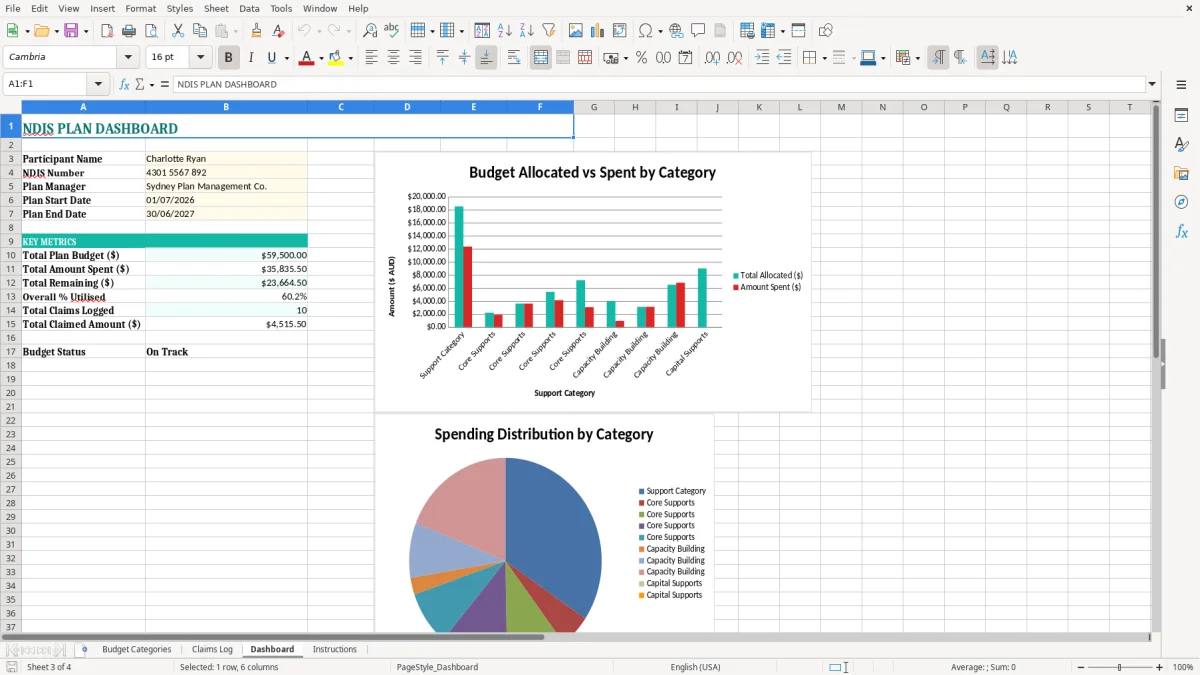
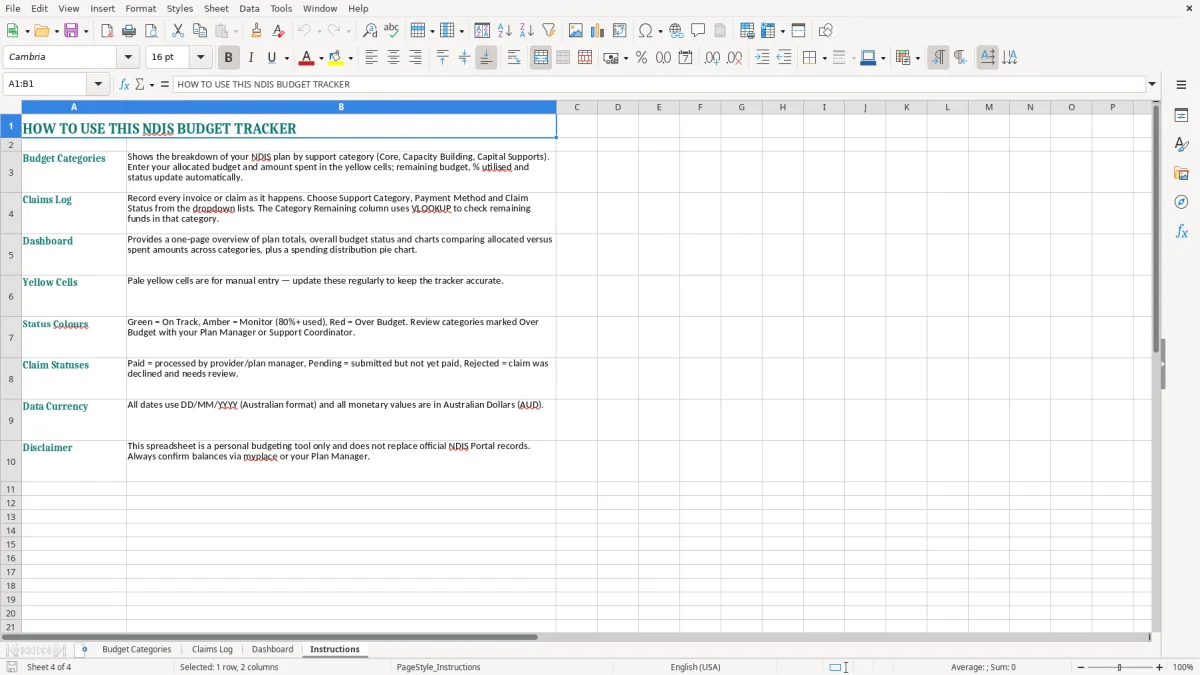
Image 3 shows the Dashboard with the workbook's visual summary, while image 4 shows the Instructions sheet. Review image 3 before a plan meeting rather than trying to explain spending from separate spreadsheets. For example, a participant with $7,200.00 allocated to Improved Daily Living Skills and $3,050.00 spent can see that roughly $4,150.00 remains before discussing future therapy bookings.
That same transaction record also lines up with an NDIS provider invoice when the next step is reconciling claims against what was delivered.
This spreadsheet is a tracking tool, not an approval to spend. The NDIS plan, the participant's funding management type, the service agreement and the applicable NDIS Pricing Arrangements and Price Limits determine whether a support can be claimed and what price can be charged.
NDIS budgets are commonly grouped into Core Supports, Capacity Building and Capital Supports, although the way funding can be used depends on the plan and the relevant flexibility rules. Do not move money between categories simply because one row has a surplus. Record the approved category and item exactly as shown in the plan, then check the current 2026–27 pricing information before authorising a new service.
A defensible record links each claim to the participant, provider, service date, support delivered and amount charged. If four weekly sessions cost $175.00 each, the Claims Log should show four separate $175.00 entries rather than one unexplained $700.00 total; that makes a $1,400.00 monthly run easier to reconcile to bank records and invoices.
Providers should use the correct NDIS support item and comply with the price limit applying on the service date. A rate of $85.00 per hour may be valid for one support circumstance but not another, so the workbook should not be treated as a substitute for the current NDIS price guide or a service agreement.
Self-managed participants normally retain invoices, receipts and payment evidence, while a plan manager processes provider claims and reports spending. Agency-managed claims are submitted through the NDIS provider process, but keeping a local category and claims log still helps you spot an unexpected deduction or a duplicate invoice.
Keep the workbook consistent with the participant's official NDIS records and retain supporting documents for the period required under the relevant agreement and record-keeping arrangements. A practical control is to check every monthly total: if Budget Categories says $2,450.00 spent but the Claims Log totals $2,625.00, stop and investigate before relying on the dashboard.
The costliest NDIS spreadsheet mistake is treating the total plan as one freely available pool. A participant may have $30,000.00 across several supports but only $2,200.00 set aside for consumables. Spending $1,000.00 on an item that belongs elsewhere can leave the correct category short even when the overall plan appears healthy.
Duplicate invoices often arise when a provider emails a replacement invoice and the original is also entered. Two $240.00 claims for the same support date reduce a category by $480.00 instead of $240.00. At the other end, a missed $360.00 invoice makes the remaining balance look better than it really is and can lead to an embarrassing shortfall at month-end.
Use the Claims Log as the transaction check, not just the Amount Spent ($) figure. Search for the provider, service date and amount before entering a replacement invoice. If three providers each bill $420.00 for the same week, check the dates and service descriptions rather than assuming the repeated amount is correct.
Putting a therapy invoice in Core Supports when it belongs to Capacity Building distorts both the status column and the Dashboard. The same problem occurs when a plan date is typed as 06/07/2026 instead of 07/06/2026, or when a claim from outside the plan period is included without explanation.
Image 1 makes these errors visible because the category, provider and two plan-date columns sit beside the financial fields. Use DD/MM/YYYY consistently and compare the invoice service date with the Budget Start Date and Budget End Date before updating spending.
A remaining amount of $4,800.00 is not necessarily available for the rest of the plan. If regular supports cost $1,200.00 a month and six months remain, the forecast need is $7,200.00, so the apparent balance is already $2,400.00 short. The template shows current utilisation; you still need a simple forward estimate based on booked and expected services.
The easiest routine is to update the workbook when you process the participant's invoices, not weeks later when the figures are hard to reconstruct. Set aside 15 minutes every Friday for claims entry, then do a 30-minute month-end check against provider statements, bank transactions and the Dashboard.
For example, a $5,400.00 community participation budget with $4,120.00 spent is 76.3% utilised. If eight months remain but the service is running at $700.00 a month, the expected future cost is $5,600.00, so the monthly review should flag the problem even before the status becomes fully used.
Use the exact support category and item description from the plan rather than abbreviations that mean different things to different people. If you add your own notes, put them in the Claims Log or a clearly labelled extra column, and do not overwrite the calculated financial fields in Budget Categories.
When several people update the file, nominate one person to own the monthly reconciliation. Protecting formula cells and using Excel's data validation for repeated categories can reduce typing errors, but the workbook should still be checked against source invoices.
This spreadsheet suits one participant or a small number of straightforward providers. Consider Xero, MYOB or dedicated NDIS plan-management software when you are handling hundreds of claims, multiple participants, recurring invoices, GST treatment, payment approvals or audit trails. A workbook with 300 claims a month can still work, but manual checking becomes a poor use of time and duplicate detection becomes harder.